

At Beaconhills College we believe that access to technology is a right, not a privilege, but this comes with a level of responsibility.
Becoming a positive digital citizen is a skill that all Internet users need to embrace. We incorporate this behaviour into our classes and promote students having a clear conversation with their teachers and parents to build a positive online culture.
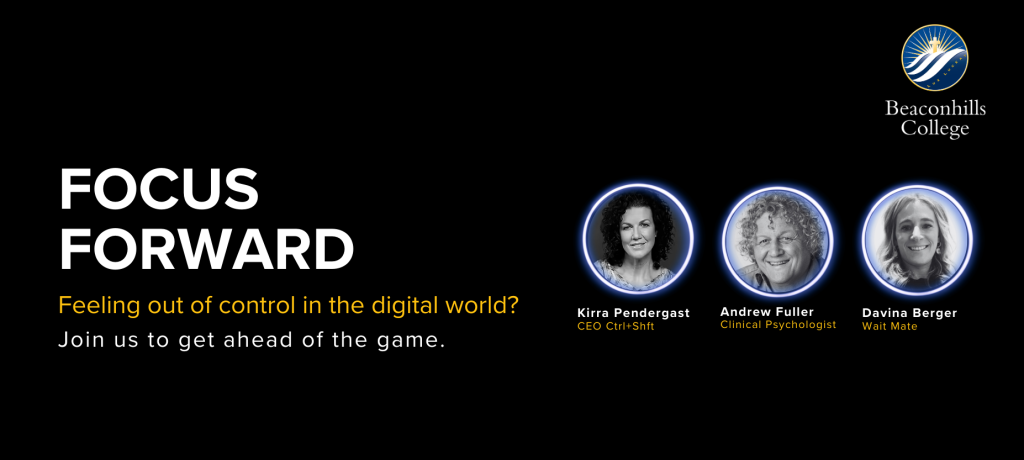
A year‑long initiative helping students, parents and staff navigate fast‑moving digital choices.
Launch event | Wednesday 4 March 2026
6pm Keynote: Kirra Pendergast (Ctrl+Shft) global leader in online safety and Andrew Fuller, psychologist.
5.30pm Early Years –Year 6 parent session – Davina Berger (Wait Mate)
Venue: Tony Sheumack Centre for Performing Arts, Beaconhills College Berwick Campus
Parent support and resources
BeInTheKnow | Beaconhills podcast: Click Here
Practical tools and guidance to help families make confident, healthy digital choices.
Ctrl+Shft (Kirra Pendergast) has online safety information and blogs on a vast amount of digital safety topics for parents. https://www.safeonsocial.com/ https://www.safeonsocial.com/blog
Article by Anna Hayes on Roblox:
https://hayesanna.substack.com/p/roblox-sits-outside-australias-age
Andrew Fuller, psychologist | resilience, psychology, brains and learninghttps://andrewfuller.com.au/
Wait Mate – delaying smartphones until Year 7 https://www.waitmate.org.au/
Time online: Achieving a healthy balance
Screen time for your child — 7 tips (PDF, 172.75KB)
Other links:
BeInTheKnow | Beaconhills podcast series: Episode 1: Smart Choices for Digital Wellbeing
eSafety Commissioner : Parent guides, webinars and app advice. https://www.esafety.gov.au/
eSmart (Alannah and Madeline Foundation):_ A whole‑community framework for online safety. https://www.alannahandmadeline.org.au/what-we-do/prevention-programs/esmart
Bullystoppers (Victorian Government): Local advice for parents, students and schools. https://www.vic.gov.au/advice-sheets
Common Sense Media: App and media reviews with parent advice (US‑centric). https://www.commonsensemedia.org/
_______________________________________________________________________
Device setup and practical how‑tos
iPads
You can use Content & Privacy Restrictions in Screen Time, also known as parental controls, to block or limit specific apps and features on your child’s iPad. Apple provides an advice page to do this.
However, please be aware that students need to use Safari to access the internet, and the Mail app for their emails, so allow these restrictions.
Family Sharing makes it easy for up to six people in your family to share iTunes, iBooks, and App Store purchases, an Apple Music family membership, and an iCloud storage plan, without sharing accounts. When the family organiser turns on purchase sharing, you can pay for family purchases with the same credit card and approve kids’ spending right from a parent’s device. Family Sharing also lets you share photos, a family calendar, and more to help keep everyone connected.
All devices
There are many commercial parental control software available. We don’t recommend any particular brand but this link to Australian PC Magazine’s review (dated August 15, 2020) gives you a look at the best of them.
Students work with digital technology every day at Beaconhills College. This may include their personal device, library and classroom computers, interactive whiteboards, and programmable robotics. At all times this is directed by the teacher in charge. This teacher will model to the students the appropriate use of technology, maintaining a focus on educating our students in their curriculum area.
Should a student fail to comply with direct instructions, which support the learning process, restrictions will be placed on the use of the technology for the safety of the student and the other members of the class. These restrictions may extend beyond the individual’s classroom, in consultation with members of the College leadership team.
Cybersmart digital citizenship
This is about confident and positive engagement with digital technology. A cybersmart digital citizen is a person with the skills and knowledge to effectively use digital technologies to participate in society, to communicate with others, and to create and consume digital content.
Beaconhills promotes digital citizenship in all students. We work with students who are new to the program, about the responsibilities and consequences that come with being connected to the internet and having a ‘digital voice’. In our Junior and Middle years we teach these skills as part of our eLearning program. The students are encouraged to talk to their parents, teachers and councillors if they have any problems online.
All students have access to a Report Bullying link in the BeaconNet portal where they can report a bullying incident that has happened to themselves or a friend. This link is always active although the College cannot respond to reports over the weekend, public holidays, school holidays or after 4pm.
While on the College network, students are connected to our wireless points that connect them to the internet via a series of filters. The main system that the College deploys is an industry grade web filter that allows for granular filtering of all internet content that is coming into the College.
From there we are able to block additional websites or allow websites that the teachers need for their program.
An extra filter that can be used at home on individual iPads and computers is Google Safe Search. This filter allows the device to sift the information that Google returns when doing a search to find appropriate material. It is a very easy process and Google have a help guide to do it on different devices.
Student College emails
Every student is given a College email address. It is usually in the format of firstname.surname@beaconhills.vic.edu.au. This email account is to be used for study related communication only. It is not to be used as a general communication tool.
Each student’s mailbox has a size restriction and once it is full, they cannot send or receive emails until it is cleared out. To clear their inbox they need to visit the Beaconhills webmail and delete unnecessary emails in your inbox, sent items and junk mail and then empty your deleted items folder. If you need help doing this please contact IT in the Beacon Centre at lunchtime.
Junior School email
Junior School students have an added level of security added to their College email account.
In Years 3 and 4, the students are only able to receive emails from a staff member at Beaconhills College. They are unable to receive emails from external accounts or any other student at the College. This restriction will remain with the student for the two years in Years 3 and 4.
(will need to include something here on social media but once we have updated the policies – the existing links are outdated)
______________________________________________________
Technology use agreements
Beaconhills College has a Technology Use Agreement for Prep to Year 4 and a second agreement for Years 5-12. These agreements are phrased in language suitable for each age group. Each agreement is distributed through Consent2Go. Every year, the student and a parent are expected to sign the agreement. We suggest parents explain and and discuss the agreement with their child before signing.
The two agreements can be found below.